Camera Capture
Frame rates, resolutions, and techniques for creative applications.
What is Camera Capture?
Camera capture is the process of acquiring images or video frames from a camera device — webcam, DSLR, mirrorless, or specialized camera — and making them available for processing, display, or storage.
For creative applications like DeltaSketch, camera capture is the starting point for time-lapses, stop-motion animations, live effects, and special video processing. Understanding capture fundamentals helps you get the best quality and performance.
Frame Rates (FPS)
Frame rate measures how many still images (frames) are captured per second. Common rates and their uses:
24 fps
Cinematic standard. Used in film production. Creates a slight motion blur that feels natural to the human eye.
30 fps
Standard for video, broadcast, and webcam capture. Good balance of quality and file size. Common in video calls and streaming.
60 fps
Smooth motion for gaming, sports, and high-quality video. Requires more storage and processing power. Ideal for slow-motion playback.
120+ fps
High-speed capture for slow-motion effects. Used in sports photography, scientific analysis, and creative art. Requires fast storage.
For time-lapse photography, you typically capture at low frame rates (1–30 fps) and play back at normal speed (24–60 fps), creating the accelerated time effect. For stop-motion, you capture one frame per pose change, often at 10–15 fps for a choppy, artistic feel.
Resolutions
Resolution determines the detail and quality of captured images. Higher resolution means more pixels, more detail, and larger file sizes.
| Resolution | Pixels | Common Use |
|---|---|---|
| VGA | 640 × 480 (307K) | Legacy webcams, low-bandwidth |
| HD (720p) | 1280 × 720 (921K) | Video calls, basic streaming |
| Full HD (1080p) | 1920 × 1080 (2M) | Standard video, YouTube, webcams |
| 2K (1440p) | 2560 × 1440 (3.7M) | High-quality video, gaming |
| 4K (2160p) | 3840 × 2160 (8.3M) | Professional video, film |
| 8K (4320p) | 7680 × 4320 (33M) | High-end production, future-proofing |
For creative applications, 1080p is often the sweet spot: enough detail for high-quality output, manageable file sizes, and real-time processing is feasible on modern hardware. 4K offers more flexibility for cropping and zooming but requires more powerful GPUs for real-time effects.
Camera Types for Creative Work
Webcams
Built-in or USB-connected. Convenient, affordable, good for streaming and video calls. Limited manual control. Examples: Logitech C920, Razer Kiyo.
DSLR / Mirrorless
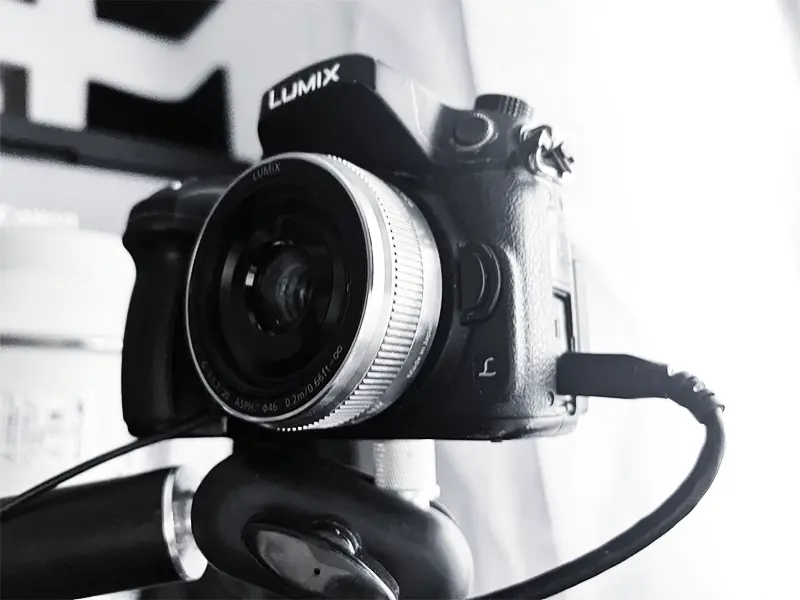
Interchangeable lenses, large sensors, excellent image quality. Can be used as webcams via USB or HDMI capture cards. Manual control over exposure, focus, and more.
Action Cameras
Compact, rugged, wide-angle lenses. GoPro, DJI Osmo Action. Great for unique perspectives, time-lapses in extreme conditions, and creative angles.
Specialty Cameras
Infrared, thermal, high-speed, 360° cameras. Enable unique creative effects and scientific visualization. Often require custom capture software.
Capture Techniques
Time-Lapse Photography
Capture frames at intervals (e.g., one frame every 2–10 seconds) and play them back at normal speed. This accelerates time, showing slow-moving processes like sunsets, construction, or cloud movement in seconds.
- Interval: Depends on subject speed. Clouds: 2–5s. Construction: 5–15min. Stars: 15–30s.
- Exposure: Often longer than standard to gather more light in low-light conditions.
- Stability: Use a tripod. Any camera movement ruins the effect.
- Software: DeltaSketch automates capture, preview, and export of time-lapses.
Stop-Motion Animation
Physically move objects slightly between each frame. When played back, the objects appear to move on their own. Requires patience and precision.
- Frame rate: Typically 10–15 fps for a stylized, choppy look. 24 fps for smoother animation.
- Onion skinning: See a ghosted view of the previous frame to guide object placement.
- Consistency: Maintain consistent lighting, camera angle, and object positioning between frames.
- Tools: DeltaSketch provides frame-by-frame capture with live preview and playback.
Live Camera Effects
Apply real-time effects to a live camera feed. Used in streaming, video calls, performances, and interactive art.
- Low latency: Process frames in under 33ms for 30fps or 16ms for 60fps.
- GPU acceleration: Essential for complex effects at real-time speeds.
- Common effects: Background blur, color filters, overlays, face tracking, AR effects.
Video Codecs & Formats
When saving captured video, the codec determines quality, file size, and compatibility:
H.264 / AVC
Most compatible codec. Good quality at moderate file sizes. Supported everywhere. Use for sharing and general use.
H.265 / HEVC
Better compression than H.264. Half the file size for similar quality. Requires more processing power. Growing support.
ProRes
Apple's professional codec. Excellent quality, large files. Used in post-production. Available on macOS and Windows with plugins.
DNxHD / DNxHR
Avid's professional codec. Similar to ProRes. Common in professional video workflows. Good for editing.
Lossless / Raw
Uncompressed or minimally compressed. Maximum quality, enormous files. Used for archival and when quality is paramount.
Image Sequences
Save frames as individual images (PNG, JPEG, TIFF). Maximum flexibility for post-processing. Large storage requirements.
Camera Settings for Best Results
- Manual mode. Avoid auto-exposure and auto-focus during capture. These can cause flickering or focus shifts between frames.
- White balance. Set manually to prevent color shifts in time-lapses as lighting changes.
- ISO. Keep as low as possible to minimize noise. Increase only when necessary for low-light situations.
- Aperture. Controls depth of field. Wider apertures (lower f-numbers) create shallow depth of field; smaller apertures keep more in focus.
- Shutter speed. For video, use 180° shutter rule (shutter speed = 1/(2 × frame rate)) for natural motion blur. For time-lapse, adjust based on desired motion blur.
- File format. Shoot RAW for maximum editing flexibility, or high-quality JPEG for convenience and smaller files.
Capture Hardware
Capture Cards
Devices like Elgato Cam Link, Blackmagic Design Intensity, or AVerMedia capture cards. Convert HDMI/SDI camera output to USB for computer capture. Essential for DSLR/mirrorless cameras.
Intervalometers
Hardware or software timers that trigger camera shutter at intervals. Built into many cameras, or available as external devices. Essential for automated time-lapse capture.
Motorized Sliders
Move the camera smoothly during time-lapse capture. Create cinematic motion. Examples: Syrp, Rhino, Edelkrone. Controlled via app or intervalometer.
Tripods & Supports
Essential for stable capture. Carbon fiber for lightweight portability, heavy-duty for studio work. Fluid heads for smooth panning and tilting.
Getting Started with Camera Capture
To begin capturing for creative projects:
- Choose a camera: start with a webcam or smartphone for basics; upgrade to DSLR/mirrorless for quality
- Set up your camera on a stable tripod in a well-lit location
- Switch to manual mode: set exposure, white balance, and focus
- For time-lapse: set interval (2–10s for clouds, longer for construction), connect intervalometer or use software
- For stop-motion: set up frame-by-frame capture with onion skinning preview
- For live effects: connect camera via USB or capture card, ensure drivers are installed
- Use software like DeltaSketch to capture, preview, and export your sequences
- Experiment with different frame rates, resolutions, and effects to find your style
Common Challenges & Solutions
- Flickering in time-lapses. Caused by auto-exposure or changing lighting. Solution: manual mode, fixed exposure, or deflicker software.
- Camera shake. Even slight movement is noticeable. Solution: sturdy tripod, remote shutter, mirror lock-up (DSLR).
- Low light noise. High ISO introduces grain. Solution: lower ISO with longer exposures, add lighting, or use noise reduction in post.
- Large file sizes. High resolution and frame rates create huge files. Solution: compress during capture, use efficient codecs, or capture image sequences.
- Focus shifts. Auto-focus can hunt between frames. Solution: manual focus, focus lock, or stop-motion assist tools.